
Easily Fix Missing Leading Zeros in Your Envelope Addressing File When Using Google Sheets
When ordering addressed envelopes, you are required to fill out a spreadsheet with your guests’ names and addresses. This spreadsheet allows the option for zip codes to be on their own line instead of next to the city and state.
If you choose this option and have guests from the Upper East Coast (where zip codes begin with zeros), you may notice a problem—those leading zeros disappear! For example, 01069 becomes 1069. In this post, we explain how to fix this issue so your East Coast friends can receive their invitations without any trouble.
Why Do Leading Zeros Disappear in Google Sheets?
Google Sheets automatically interprets numbers as values and removes unnecessary leading zeros. Since zip codes are not used in mathematical calculations, they should be formatted as text rather than numbers. Follow the steps below to fix missing leading zeros in your envelope addressing file.
Prevent the Issue Before Entering Data
If you haven’t started filling out your spreadsheet yet, format the Zip Code column as Plain Text first. This will ensure that all zip codes, including those starting with zeros, remain intact as you enter them.
Steps to Fix Missing Zeros in Google Sheets
- Select the Zip Code Column
Click on the top row label of the Zip Code column (e.g., “F”) to highlight the entire column. - Open the Format Tab
Click on the Format menu in the toolbar. - Change the Number Format
Hover over Numbers, then select Plain Text from the dropdown menu. This will allow the column to retain leading zeros. - Manually Reinsert Missing Zeros (If Needed)
If some zeros have already disappeared, you may need to manually reinsert them.

Important Tips For Downloading Your CVS File
By following these simple formatting steps, you can ensure that all zip codes remain accurate, preventing delays and ensuring smooth processing for your addressed envelopes!
-
- Use the exact column titles specified in the provided template.
- Modifying column titles may prevent the system from recognizing your data, leading to upload errors
- Always double-check formatting before saving and uploading your file
- Modifying column titles may prevent the system from recognizing your data, leading to upload errors
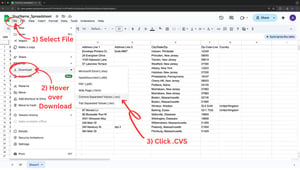
- Ensure you export your file as a Comma Separated Value (.cvs) file.
For step-by-step instructions on downloading your Google Sheets spreadsheet into the correct file format for LCI Paper, click here.
You may also like:
How to Fix Missing Zipcode Zeros in Excel | How Do I Supply My Envelope Address List? | How to Order Printed Envelopes