
In order to ensure your items print to the highest quality, we require you to submit a print-ready PDF. This ensures that your designs are properly formatted, colors are accurate, and no unexpected printing issues arise. By following the correct file setup, you can achieve professional-quality prints with sharp details and vibrant colors.

What is a Print-Ready PDF and Why Do I Need it?
A print-ready PDF is a file specifically formatted to ensure the highest quality print output. It meets all the necessary technical requirements so that your printed items appear exactly as intended, with crisp details, accurate colors, and properly aligned elements. Submitting a print-ready PDF eliminates the risk of unexpected printing issues such as blurry images, incorrect colors, or unwanted borders.
Print-Ready PDF Criteria
To guarantee professional-quality prints, your file should meet the following criteria:
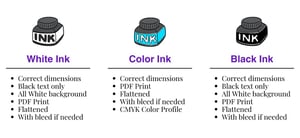
- Correct Dimensions (With Bleed If Necessary)
- Ensure your file matches the exact dimensions required for your project. Click here to find your size.
- Pro Tip: If your design extends to the edge of the card, include a 1/4-inch bleed (1/8 inch on each side), making your file slightly larger in both height and width.
- Flattened File
- All layers should be merged into a single layer to prevent shifting elements or missing fonts.
- CMYK Color Scale
- Convert your file to CMYK mode to ensure accurate color reproduction.
- 300 DPI Resolution
- High-resolution (300 DPI) ensures sharp and clear print quality. Lower resolutions may result in blurry or pixelated prints.
- For Black & White Ink Printing
- Use a pure white background and pure black for your design to ensure proper ink application when printing with black and white ink.
Free Templates for Easy Setup
To simplify the process, we offer a collection of free templates that are pre-formatted with the correct dimensions, bleed settings, and color modes. These templates help streamline your design setup and ensure compliance with print-ready standards.
How to Create a Print-Ready PDF Yourself
Creating a print-ready PDF ensures that your file is optimized for professional printing without any unexpected errors. Depending on the software you use, the process may differ slightly. Below are step-by-step guides for some of the more popular options including Adobe Illustrator, InDesign, Photoshop, and Canva.
 Using Adobe Illustrator, InDesign, or Photoshop
- Set Up Your Document Correctly
- Open Adobe Illustrator, InDesign, or Photoshop.
- Ensure the dimensions include a 1/4-inch bleed if needed.
- Set the color mode to CMYK and resolution to 300 DPI.
- Flatten Your Artwork
- In Photoshop: Go to
Layer>Flatten Image. - In Illustrator: Select all objects, then go to
Object>Flatten Transparency. - In InDesign: Export as PDF with “High-Quality Print” settings.
- In Photoshop: Go to
- Save as a Print-Ready PDF
- Go to
File>Save AsorExport. - Select
PDFas the format. - In the PDF settings:
- Choose High-Quality Print or Press Quality.
- Ensure Marks and Bleeds are set if applicable.
- Under
Compression, set images to 300 DPI. - Make sure the color is CMYK.
- Click
Save.
- Go to
Using Canva
- Set Your File Size & Background Color
- Start a new design with the correct dimensions.
- Ensure you are using an all white background and black for your design if using black and white ink printing.
- Ensure Proper Bleed & Margins
- If your design reaches the edge, extend elements beyond the borders to account for the bleed. You may need to resize your file to adjust accordingly.
- Export as a Print-Ready PDF
- Click
Share>Download. - Choose PDF Print as the file format.
- Check the box for Crop Marks and Bleed if applicable.
- Canva works in RGB mode by default. Use the drop down menu to select the CMYK color option to help preserve color accuracy.
- Download the file and review it to ensure all elements are correct before printing.
- For a more in-depth tutorial, click here.
- Click
White Ink Printing
By following these steps, you’ll ensure your print files meet professional printing standards, reducing errors and achieving high-quality results. Need assistance? Contact us to review your files before printing!
You may also like:
How to Create Print Ready Files in Canva | How to Upload Print Files on LCI Paper | What size file do I need for printing?