
Simplify Your Custom Envelope Addressing with LCI Paper’s Template
At LCI Paper, we aim to make your custom printed envelope ordering process as seamless as possible. To ensure accuracy and efficiency, we require your envelope address list to be formatted in a (.csv) spreadsheet with specific column titles.
Download Excel Envelope Spreadsheet
If you do not have Excel, there’s no need to worry. You can create your guest names and addressing spreadsheet using one of the alternative spreadsheet programs like Google Sheets or Numbers.
Below we will cover:
- Spreadsheet Requirements
- How to Set-Up and Save Your Spreadsheet Using Excel, Google Sheets, & Numbers
- Mistakes to Avoid
- How to Upload Your Spreadsheet in LCI Paper
Envelope Addressing Spreadsheet Requirements
To ensure crisp printing and beautifully addressed envelopes, we have a few important requirements. Please submit a completed spreadsheet as a .CSV file (Comma Separated Values), as our system does not support other formats.
Below are common spreadsheet programs you can use to create your own spreadsheet.
Common Spreadsheet Programs:
When setting up your spreadsheet it’s essential to use the exact column titles listed below. Any changes to these headers will prevent your file from uploading correctly.

There are a few steps you need to follow to ensure your file is compatible with our system. Keep reading to find out how to save and format your spreadsheet correctly with these spreadsheet programs!
How to Get Started
When adding printing to your envelopes, you have the option to manually enter each name and address of your guests or you can download LCI Paper’s free spreadsheet template and upload them all at once.
You can download the Excel spreadsheet right from LCI’s customization interface or you can create your own using the spreadsheet requirements listed above.
Keep reading for more information on setting-up and saving your spreadsheet in the top 3 common spreadsheet programs, plus on how to successfully upload your file on LCIPaper.com.
How to Use Microsoft Excel for Your Addressing Spreadsheet
Follow these simple steps to create and save your spreadsheet with the correct format on Excel:
-
- Open Excel and create a new spreadsheet or open our free template.
- Fill in the 1st row with the column titles as shown in the image below. If you change these titles, our system will not recognize them, and your file will not upload correctly.

- Format the Zip Code Line column to Special (ZIP Code) to avoid missing leading zeros.
-
-
- Click the column header labeled F.
- Change the column format from General to Special (ZIP Code)
- Use the drop-down menu to select “More Number Formats”
- Select Special
- Select ZIP Code
-
-
- If you are using our template, you can delete the 1st column which shows an example guest address listed
- Fill out your spreadsheet with guest names and addressing.
- Save your spreadsheet as a CSV file:
-
-
- Click File in the top menu.
- Hover over Save As.
- Select Comma Separated Values (.csv).
- Save your spreadsheet to your desktop or desired location.
-
-
- Upload your CSV file into LCI Paper’s system*

For more info on how to upload your spreadsheet into LCI, scroll down and keep reading.
How to Use Google Sheets for Your Addressing Spreadsheet
Follow these simple steps to create and save your spreadsheet with the correct format on Google Sheets:
-
- Open Google Sheets and create a new spreadsheet.
- Fill in the 1st row with the column titles as shown in the image below. If you change these titles, our system will not recognize them, and your file will not upload correctly.

- Format the Zip Code Line column to Plain Text to avoid missing leading zeros.
-
-
- Click the column header labeled F.
- Select the Format tab.
- Hover over Numbers.
- Select Plain Text
-
-
- Fill out your spreadsheet with guest names and addressing.
- Save your spreadsheet as a CSV file by following these steps:
-
-
- Click File in the top menu.
- Hover over Download.
- Select Comma Separated Values (.csv).
- Save your spreadsheet to your desktop.
-
-
- Upload your CSV file into LCI Paper’s system
-
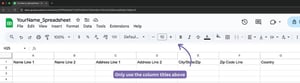
For more in-depth guide to using Google Sheets, read Can I Submit a Google Sheet for My Spreadsheet.
How to Use Numbers for Your Addressing Spreadsheet
Follow these simple steps to create and save your spreadsheet with the correct format in Numbers:
-
- Open Numbers and create a new spreadsheet.
- Fill in your column titles in the top gray row.
- Only use the column titles as shown in the image below. If you change these titles, our system will not recognize them, and your file will not upload correctly.
 Fill out in your spreadsheet with guest names and addressing
- Save your Numbers File by following these easy steps:
- Click File in the top menu.
- Click Save.
- Enter a Title for your spreadsheet .
- Click save your spreadsheet in your desired location.
- Save your spreadsheet as a CSV file by following these steps:
- Click File in the top menu.
- Hover over Export To.
- Select CSV….
- Save your CSV file to your desired location.
- Upload your CSV file into LCI Paper’s system
 Fill out in your spreadsheet with guest names and addressing
Other Things to Consider When Creating Your Spreadsheet
To avoid formatting issues or errors when your envelopes are being printed, keep these key tips in mind:
Only Use Our Column Titles
Our system can only recognize the column headers as pictured in the steps above. You may need adjust your column titles if yours differ with the ones shown.
Watch Out for Converting Zeros
If you have zip codes that begin with a zero (e.g., 01069, 01704), double check that all your leading zeros are present in your spreadsheet.
Avoid Inputting Line Breaks
If you press “Enter” to add line breaks within a cell, these breaks will carry over to the final printed product. Instead, keep all text in a single line per cell.
Formatting Transfers Directly
The way your spreadsheet appears is exactly how it will print. If all your names and addresses are capitalized in the file, they will be capitalized on your final product. Any extra spaces or misspellings will also be transferred. We highly recommend reviewing your spreadsheet carefully before submitting it.
Be Mindful of Special Characters
Some font selections may not support special characters. If your spreadsheet contains accented letters or unique symbols, double-check that your chosen font can display them correctly.
Do Not Convert Your Spreadsheet into a Table
Google Sheets may prompt you to convert your data into a table. Please do not accept this change—keep your spreadsheet as is.
Leave Blank Sections Truly Blank
If you want a section to remain empty, simply leave the cell blank. Do not press the spacebar to create a “placeholder,” as that space will carry over to your final printed piece.
Zip Codes on the Same Line as City and State
To keep the zip code on the same line as the city and state, enter the zip code in the designated column and leave the “Zip Code Line” column blank.
How to Upload Your Spreadsheet at LCI Paper
Before you upload your file into our system, we recommend double-checking your names and addresses for any mistakes. Once you have your .csv file spreadsheet, you can upload it directly into our interface*.
If you are having trouble uploading your file into our system, please skip ahead until you’ve added your envelopes to your cart. Upon checkout, please indicate you were unable to upload your spreadsheet in the Customer Notes section. After you’ve checked out, please email your spreadsheet along with your order number to our printing department for a digital proof.*

Upload your CSV file into LCI Paper’s system.
-
-
- Click Addressing Spreadsheet Ready To Go bubble to select it.
- Press Choose File and select your CSV file to upload.
- Click the Import button
- A pop up will appear letting you know if your upload was successful.
- Click OK to remove the pop up.
- Click Next to proceed with selecting your printing setup.
-
By following these steps, you can ensure a seamless upload and a flawless final product!
Shop Envelope Addressing Print Services
If you have any questions or need assistance, please contact us.
You may also like:
How to Fix Missing Zipcode Zeros in Excel | How to Order Printed Envelopes | Shop All Envelopes